https://ganbichchitra.blogspot.com/google785737830bcedd5c.htm www.ganbichchitra.blogspot.com: Visual Basic Tutorial

জ্ঞান বিচিত্রা জ্ঞানের আলো,জ্ঞানের সন্ধানে সবাই চলো

AD BANNER
IT World Bangla

রাগ হল এমন একটি বাতাস যা বিবেকের প্রদীপ নিভিয়ে দেয়

মুক্ত বিশ্বাস হচ্ছে সকল সাফল্য, সকল অর্জনের ভিত্তি। বিশ্বাসই রোগ নিরাময় করে, মেধাকে বিকশিত করে, যোগ্যতাকে কাজে লাগায়, দক্ষতা সৃষ্টি করে। ব্যর্থতাকে সাফল্যে আর অশান্তিকে প্রশান্তিতে রূপান্তরিত করে।

আপনার জীবনের চিন্তাভাবনাকে বদলে দিতে পারে

নিয়ত বা অভিপ্রায় হচ্ছে মনের লাগাম। নিয়ত মনকে নিয়ন্ত্রন করে, দেহকে সঠিক পথে পরিচালিত করে, দেহ-মনে নতুন বাস্তবতার জন্ম দেয়

আপনার জীবনের চিন্তাভাবনাকে বদলে দিতে পারে

ব্যক্তিগত খেয়াল বা আবেগ আর জীবনের লক্ষ্যকে এক করে ফেলবেন না। লক্ষ্যকে যখন সর্বোচ্চ গুরুত্ব দেবেন তখন তা আপনাব্যর্থরা অবচেতনভাবে ব্যর্থতার সঙ্গে নিজেদের সংযুক্ত করে। সচেতনভাবে সাফল্যের সঙ্গে একাত্ম হলে সহপাঠী বা প্রতিবেশীর সঙ্গে সুসম্পর্ক আর বন্ধুত্ব এক নয়। চেতনা ও আদর্শের মিল রয়েছে এমন কারো সঙ্গেই বন্ধুত্ব হতে পারে।সাফল্যই আপনার দিকে আকৃষ্ট হবে।কে আবেগের ঊর্ধ্বে নিয়ে যাবে

Banga Bandu Bridge

“ মা হল পৃথিবীর একমাত্র ব্যাংক, যেখানে আমরা আমাদের সব দুঃখ, কষ্ট জমা রাখি এবং বিনিময়ে নেই বিনাসূদে অকৃত্রিম ভালোবাসা ”


Showing posts with label Visual Basic Tutorial. Show all posts

Wednesday, January 9, 2019

BMI Calculator

A lot of people are obese nowadays and it could affect their health seriously . If your BMI is more than 30, you are considered obese. You can refer to the following range of BMI values for your weight status.
  • Underweight = <18 .5="" font="">
  • Normal weight = 18.5-24.9
  • Overweight = 25-29.9
  • Obesity = BMI of 30 or greater
This BMI calculator is a Visual Basic program that can calculate the body mass index, or BMI of a person based  on the body weight in kilogram and the body height in meter. BMI can be calculated using the formula    weight/( height )2, where weight is measured in kg and height in meter. If you only know your weight and height in lb and feet, then you need to convert them to the metric system.

The Code

Private Sub Command1_Click()
    Label4.Caption = BMI(Text1.Text, Text2.Text)
End Sub
Private Function BMI(height, weight)
      BMIValue = (weight) / (height ^ 2)
      BMI = Format(BMIValue, "0.00")
End Function

Scientific Calculator Created Using Visual Basic

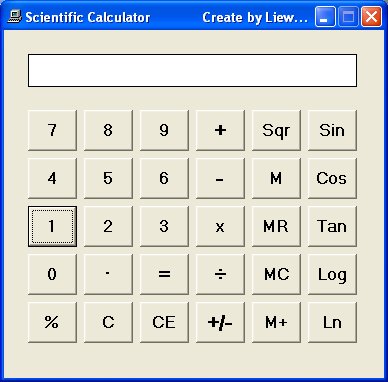
his is a calculator that resembles a typical scientific calculator , albeit a simpler version. In our version, we have only included the trigonometric functions and the logarithmic functions. The reason of creating a simpler version of the calculator is to help users to learn the programming concepts in a gradual manner and not to confuse them especially those who are learning to program in Visual Basic.
To design the interface, we just to need to modify the interface of the basic calculator that we have created earlier using Visual Basic 6.  In this calculator, we have added five more buttons, they are Sin, Cos, Tan, Log and Ln.  The common trigonometric functions in Visual Basic 6 are Sin, Cos, Tan and Atn.
a) Sin is the function that computes the value of sine of an angle in radian.
b) Cos is the function that computes the value of cosine of an angle in radian.
c) Tan is the function that computes the value of tangent of an angle in radian.
d) Atn is the function that computes the value of arc tangent of an angle in radian.
Log computes the value of logarithm to base 10 whilst Ln computes the value of natural logarithm.
An angle in degree has to be converted to radian before it can be calculated by the above trigonometric functions. From high school mathematics, we know that π radian is equivalent to 180°; which means 1 radian is equivalent to π divided by 180. Therefore, in order to convert an angle x from degree to radian, we have to multiply x by (π/180). However, there is a small problem because it is rather difficult to obtain the precise value of π, fortunately, there is a way to do it in VB. First of all, we know that an arc tangent of 1 will return the value of 45° which is π/4 radian. So, to obtain the value of π, just multiply the arc tangent of 1 with 4. Now, we are ready to enter the code for all the above additional buttons.
For the Sin button, enter the following code:
Private Sub CmdSin_Click()
sinx = Round(Sin(displayValue * 4 * Atn(1) / 180), 4)
panel.Caption = sinx
End Sub
* The Round function is to correct the output to certain number of decimal places.
For the Cos button, enter the following code:
Private Sub CmdCos_Click()
cosx = Round(Cos(displayValue * 4 * Atn(1) / 180), 4)
panel.Caption = cosx
End Sub
For the Tan button, enter the following code:
Private Sub CmdTan_Click()
tanx = Round(Tan(displayValue * 4 * Atn(1) / 180), 4)
panel.Caption = tanx
End Sub
For the Ln button, enter the following code:
Private Sub CmdLn_Click()
panel.Caption = Log(displayValue)
End Sub
and for the Log button, enter the following code:
Private Sub CmdLog_Click()
panel.Caption = Log(displayValue) / Log(10)
End Sub
The interface is shown below:


Scientific Calculator created using Visual Basic 6

Sunday, June 17, 2018

ক্যালকুলেটর

নিজের তৈরী ক্যালকুলেটর ব্যহার করুন


নিজের তৈরী ক্যালকুলেটর ব্যহার করুন

ভিজুয়াল বেসিক দিয়ে অনেক সহজেই একটা ক্যালকুলেটর তৈরী করা সম্ভব। যদি ও উইন্ডোজের সাথে বাই-ডিফল্ট একটা ক্যালকুলেটর থাকে। তারপর ও নিজে তৈরী করার মজাই আলাদা। নিজে তৈরী করলে আপনি আপনার মন মত করে ক্যালকুলেটরটি ডিজাইন করতে পারবেন। ফলে এর সাইজ, ব্যকগ্রাউন্ড, টেক্সটের ধরন সব কিছুই হবে আপনার পছন্দমত। প্রথমে উপরের ছবির মত করে একটা ফরমে সবকিছু সেট করে নিন। এর পর ফরমে ডাবল ক্লিক করে নিচের কোডগুলো পেস্ট করুন।
Option Explicit
Dim Operand1 As Double, Operand2 As Double
Dim Operator As String
Dim ClearDisplay As Boolean
Private Sub ClearBttn_Click()
Display.Caption = “”
End Sub
Private Sub Digits_Click(Index As Integer)
If ClearDisplay Then
Display.Caption = “”
ClearDisplay = False
End If
Display.Caption = Display.Caption + Digits(Index).Caption
End Sub
Private Sub Div_Click()
Operand1 = Val(Display.Caption)
Operator = “/”
Display.Caption = “”
End Sub
Private Sub DotBttn_Click()
If ClearDisplay Then
Display.Caption = “”
ClearDisplay = False
End If
If InStr(Display.Caption, “.”) Then
Exit Sub
Else
Display.Caption = Display.Caption + “.”
End If
End Sub
Private Sub Equals_Click()
Dim result As Double
On Error GoTo ErrorHandler
Operand2 = Val(Display.Caption)
If Operator = “+” Then result = Operand1 + Operand2
If Operator = “-” Then result = Operand1 – Operand2
If Operator = “*” Then result = Operand1 * Operand2
If Operator = “/” And Operand2 <> “0” Then result = Operand1 / Operand2
Display.Caption = result
ClearDisplay = True
Exit Sub
ErrorHandler:
Dim intMsg As Integer
intMsg = MsgBox(“The operation resulted in the following error” _
& vbCrLf & Err.Description, vbOKCancel)
Display.Caption = “ERROR ” & intMsg
ClearDisplay = True
End Sub
Private Sub Form_Load()
End Sub
Private Sub Minus_Click()
Operand1 = Val(Display.Caption)
Operator = “-”
Display.Caption = “”
End Sub
Private Sub Over_Click()
If Val(Display.Caption) <> 0 Then Display.Caption = 1 / Val(Display.Caption)
End Sub
Private Sub Plus_Click()
Operand1 = Val(Display.Caption)
Operator = “+”
Display.Caption = “”
End Sub
Private Sub PlusMinus_Click()
Display.Caption = -Val(Display.Caption)
End Sub
Private Sub Times_Click()
Operand1 = Val(Display.Caption)
Operator = “*”
Display.Caption = “”
End Sub

Wednesday, June 6, 2018

Digital Stopwatch

We can design a stopwatch that resembles a typical digital stopwatch. When the user clicks mode, he or she  can select clock, date or stopwatch. When he or she select clock, the current time is displayed and when date is selected, the current date will be displayed. Lastly, when the user select the stopwatch, all the digits will be set to 0. In this program, you need to insert one label, three command buttons and two timers. Timer1 is used for the stopwatch so we set the interval to 1(1000th of a second). Timer2 is used to display the clock so we set the interval to 1000(equivalent to 1 second). We also used  six string variables to display the digits of the stopwatch so that we can put in the colons ":" and the decimal point. We have also created a subroutine known as countime. To add the menu items to the interface, you need to add them from the menu editor, as shown in the Figure below:

The Runtime Interface


The code

Dim a As String
Dim b As String
Dim c As String
Dim x As String
Dim y As String
Dim z As String
Dim h As String
Dim m As String
Dim s As String
Dim u As String
Dim v As String
Public interval As Double

Private Sub clock_Click()
Timer1.Enabled = False
Timer2.Enabled = True
End Sub

Private Sub Command1_Click()
Timer1.Enabled = True
Timer1.interval = 1
End Sub

Private Sub Command2_Click()
Timer1.Enabled = False
End Sub

Private Sub Command3_Click()
Timer1.Enabled = False
a = "0"
b = "0"
c = "0"
x = "0"
y = "0"
z = "0"
u = "0"
v = "0"

h = a + b
m = c + x
s = y + z
'To set the display as "00:00:00.00"
Label1.Caption = h + ":" + m + ":" + s + "." + u + v
End Sub

Sub counttime()
If Val(v) < 9 Then
v = v + 1

Label1.Caption = a + b + ":" + c + x + ":" + y + z + "." + u + v
ElseIf Val(u) < 9 Then
v = 0
u = u + 1

Label1.Caption = a + b + ":" + c + x + ":" + y + z + "." + u + v
ElseIf Val(z) < 9 Then
v = 0
u = 0

z = z + 1

Label1.Caption = a + b + ":" + c + x + ":" + y + z + "." + u + v
ElseIf Val(y) < 5 Then
v = 0
u = 0
z = 0
y = y + 1
Label1.Caption = a + b + ":" + c + x + ":" + y + z + "." + u + v
ElseIf Val(x) < 9 Then
v = 0
u = 0
z = 0
y = 0
x = x + 1
Label1.Caption = a + b + ":" + c + x + ":" + y + z + "." + u + v
ElseIf Val(c) < 5 Then
v = 0
u = 0
z = 0
y = 0
x = 0
c = c + 1
Label1.Caption = a + b + ":" + c + x + ":" + y + z + "." + u + v

End If

End Sub
Private Sub Timer1_Timer()
counttime

End Sub

ElseIf Val(b) < 9 Then
v = 0
u = 0
z = 0
y = 0
x = 0
c = 0
b = b + 1
Label1.Caption = a + b + ":" + c + x + ":" + y + z + "." + u + v
ElseIf Val(b) < 9 Then
v = 0
u = 0
z = 0
y = 0
x = 0
c = 0
b = b + 1
Label1.Caption = a + b + ":" + c + x + ":" + y + z + "." + u + v
ElseIf Val(a) < 9 Then
v = 0
u = 0
z = 0
y = 0
x = 0
c = 0
b = 0
a = a + 1
Label1.Caption = a + b + ":" + c + x + ":" + y + z + "." + u + v
Private Sub date_Click()
Label1.Caption = Date
Timer2.Enabled = False
End Sub

Private Sub Form_Load()
a = "0"
b = "0"
c = "0"
x = "0"
y = "0"
z = "0"
u = 0
v = 0
h = a + b
m = c + x
s = y + z
'To set the display as "00:00:00.00"
Label1.Caption = h + ":" + m + ":" + s + "." + u + v

End Sub

Private Sub stopwc_Click()
Timer2.Enabled = False
a = "0"
b = "0"
c = "0"
x = "0"
y = "0"
z = "0"
u = "0"
v = "0"

h = a + b
m = c + x
s = y + z
Label1.Caption = h + ":" + m + ":" + s + "." + u + v

End Sub
Private Sub Timer2_Timer()
Label1.Caption = Time
End Sub

Friday, June 1, 2018

Printing in VB6 using the Printer Object

This sample application demonstrates how to print a basic hard copy report using the VB Printer object. Visual Basic 6 printing can be accomplished through many different means. This article focuses on the simplest and most common way to handle this. It should be stated that there are several options for printing reports through a Visual Basic program: reports can be created through a "report designer" application such as Crystal Reports, the VB Data Report Designer, the MS-Access Reports feature, and third-party products such as Active Reports; the functionality of MS-Excel and MS-Word can also be harnessed to print from VB. Still, there are times when a basic plain-text printout will do just fine, and the overhead of the aforementioned products is not necessary. The native VB Printer object can be used to produce a basic plain-text printout with low processing overhead. While the Printer object can be used to produce "fancy" printouts with various graphics, lines, boxes, and a mixture of fonts, we're having none of that here.

Visual Basic 6 Printing:

This sample application the simplest way to print using Visual Basic 6. It produces an "old school" plain text report with one font, Courier New 10 point. With a monospaced font like Courier, we can determine the number of characters that will fit on one line and the number of lines that will fit on one page. By knowing the number of characters that can fit on one line, we can plan the format of the data to be presented. By knowing the number of lines that will fit on one page, we can use logic to perform page breaks and print headings when a page fills up with data. Assuming a standard page size of 8 ½ by 11, we can fit approximately 80 characters per line (with extra characters for a left margin), and 60 lines per page (with extra lines for a top margin).

The application reads in a comma-delimited text file of customer records. Each record contains the following fields: last name, first name, address, city, state, and zip code. The determination for how these fields are to be laid out on the printed line is as follows: 19 characters for the first and last name combined, 1 space separator, 26 characters for the address, 1 space separator, 23 characters for the city, 1 space separator, 2 characters for the state, 2 space separator, 5 characters for the zip code. Main headings with date, time, and page number as well as column headings will appear at the top of each page. An excerpt of the printed report is shown below:

Print Date: 04/13/05 THE VBPROGRAMMER.COM Page: 1
Print Time: 22:32:12 CUSTOMER LIST

CUSTOMER NAME ADDRESS CITY ST ZIP
------------- ------- ---- -- ---

Dorothy Durgan 900 Fergusson Fountain Fousmarck IL 94815
Liana Donnelly 210 Chapman Way Ontamden KY 76925
Carolyn Ullrich 310 Charm Gardens Camdeven LA 80590
Lavonne Hamill 520 Carnegy Circle Champacoma RI 13211
Brandi Davis 520 Esplanade Park Long Camderden ID 02841
Rocco Emard 520 Redmond Avenue Clevernton KS 04223
Lilliana Becker 430 Carnac Drive Norfowtucket AR 14962
Jaquelin King 340 Christmas Drive Evansvivis MI 41296
Emmy Walter 440 Chapman End Norwaron WI 84848
Abril Hahn 840 Library Close Bouldegas Plains KS 79763
Ashtyn Conn 940 Semantic Avenue Bristopeka Vista RI 10534
Reba Watsica 150 Portuguese Circle Councintation TX 93872
Michel Crooks 550 Old Stage Circle Coraston NE 39978
Wilda Bogisich 460 Marine Street Cloviple MI 19259
Bethel Mosciski 660 Sunset Hill Close Roanoma LA 66311
Wyman Spencer 670 Chichester View Loracisco TX 08508
Josiah Hettinger 770 Massen Lane Santa Fullesburg AL 13986
Felicia Jacobs 870 Military Fountain Renolsom AK 24264
Gladyce Conn 580 Gravel Pit Park Comptonix ND 66546
Donnie Auer 880 New Queens Way Washinnetonka HI 07913
Tito Hirthe 980 Bastion Road West Rialtodondo AK 36004
Ulises Satterfield 190 North Williston Park St.Huntsviswell ND 80783
Bailey Sauer 290 Carnac Avenue Austircester MD 94335
Liam Bednar 890 River Cove Fountain Ogdeson LA 69744


The user interface isn't much to speak of. There are two command buttons: "Print Customer List", which causes the above report to be printed, and an "Exit" button which ends the application.

Visual Basic 6 printing

The commented code for this application is shown below. A handful of techniques are introduced here which have not been covered in the previous tutorials, but will be in later tutorials.

Option Explicit

'-----------------------------------------------------------------------------
Private Sub cmdPrint_Click()
'-----------------------------------------------------------------------------
Dim intLineCtr As Integer
Dim intPageCtr As Integer
Dim intX As Integer
Dim strCustFileName As String
Dim strBackSlash As String
Dim intCustFileNbr As Integer
Dim strFirstName As String
Dim strLastName As String
Dim strAddr As String
Dim strCity As String
Dim strState As String
Dim strZip As String

Const intLINE_START_POS As Integer = 6
Const intLINES_PER_PAGE As Integer = 60
' Have the user make sure his/her printer is ready ...
If MsgBox("Make sure your printer is on-line and " _
& "loaded with paper.", vbOKCancel, "Check Printer") = vbCancel _
Then
Exit Sub
End If
' Set the printer font to Courier, if available (otherwise, we would be
' relying on the default font for the Windows printer, which may or
' may not be set to an appropriate font) ...
For intX = 0 To Printer.FontCount - 1
If Printer.Fonts(intX) Like "Courier*" Then
Printer.FontName = Printer.Fonts(intX)
Exit For
End If
Next
Printer.FontSize = 10
' initialize report variables ...
intPageCtr = 0
intLineCtr = 99 ' initialize line counter to an arbitrarily high number
' to force the first page break
' prepare file name & number
strBackSlash = IIf(Right$(App.Path, 1) = "\", "", "\")
strCustFileName = App.Path & strBackSlash & "customer.txt"
intCustFileNbr = FreeFile

' open the input file
Open strCustFileName For Input As #intCustFileNbr
' read and print all the records in the input file
Do Until EOF(intCustFileNbr)
' read a record from the input file and store the fields there into VB variables
Input #intCustFileNbr, strLastName, strFirstName, strAddr, strCity, strState, strZip
' if the number of lines printed so far exceeds the maximum number of lines
' allowed on a page, invoke the PrintHeadings subroutine to do a page break
If intLineCtr > intLINES_PER_PAGE Then
GoSub PrintHeadings
End If
' print a line of data
Printer.Print Tab(intLINE_START_POS); _
strFirstName & " " & strLastName; _
Tab(21 + intLINE_START_POS); _
strAddr; _
Tab(48 + intLINE_START_POS); _
strCity; _
Tab(72 + intLINE_START_POS); _
strState; _
Tab(76 + intLINE_START_POS); _
strZip
' increment the line count
intLineCtr = intLineCtr + 1
Loop

' close the input file
Close #intCustFileNbr

' Important! When done, the EndDoc method of the Printer object must be invoked.
' The EndDoc method terminates a print operation sent to the Printer object,
' releasing the document to the print device or spooler.
Printer.EndDoc
cmdExit.SetFocus
Exit Sub


' internal subroutine to print report headings
'------------
PrintHeadings:
'------------
' If we are about to print any page other than the first, invoke the NewPage
' method to perform a page break. The NewPage method advances to the next
' printer page and resets the print position to the upper-left corner of the
' new page.
If intPageCtr > 0 Then
Printer.NewPage
End If
' increment the page counter
intPageCtr = intPageCtr + 1
' Print 4 blank lines, which provides a for top margin. These four lines do NOT
' count toward the limit of 60 lines.
Printer.Print
Printer.Print
Printer.Print
Printer.Print
' Print the main headings
Printer.Print Tab(intLINE_START_POS); _
"Print Date: "; _
Format$(Date, "mm/dd/yy"); _
Tab(intLINE_START_POS + 31); _
"THE VBPROGRAMMER.COM"; _
Tab(intLINE_START_POS + 73); _
"Page:"; _
Format$(intPageCtr, "@@@")
Printer.Print Tab(intLINE_START_POS); _
"Print Time: "; _
Format$(Time, "hh:nn:ss"); _
Tab(intLINE_START_POS + 33); _
"CUSTOMER LIST"
Printer.Print
' Print the column headings
Printer.Print Tab(intLINE_START_POS); _
"CUSTOMER NAME"; _
Tab(21 + intLINE_START_POS); _
"ADDRESS"; _
Tab(48 + intLINE_START_POS); _
"CITY"; _
Tab(72 + intLINE_START_POS); _
"ST"; _
Tab(76 + intLINE_START_POS); _
"ZIP"
Printer.Print Tab(intLINE_START_POS); _
"-------------"; _
Tab(21 + intLINE_START_POS); _
"-------"; _
Tab(48 + intLINE_START_POS); _
"----"; _
Tab(72 + intLINE_START_POS); _
"--"; _
Tab(76 + intLINE_START_POS); _
"---"
Printer.Print
' reset the line counter to reflect the number of lines that have now
' been printed on the new page.
intLineCtr = 6
Return

End Sub

'-----------------------------------------------------------------------------
Private Sub cmdExit_Click()
'-----------------------------------------------------------------------------
End
End Sub

VB6 প্রকল্প এবং নিয়ন্ত্রণ সঙ্গে কাজ

A VB project contains one or more forms and/or modules which make up a complete VB application. By default, VB names the project "Project1", but you can rename the project by going to Project à Project1 Properties on the VB menu, which will open the following dialog box:


On the General tab of the Project Properties dialog box, let's change the name from "Project1" to prjFirst. When you are done, click OK to dismiss the dialog box.

Now that we have the IDE just the way we want it and a proper project name to work under, let's explore the basic windows that comprise the VB IDE.

The Form


The form is the heart of your VB application; it is the "screen" or "window" that your users will interact with. You can think of the form as a "canvas" on which you will place the various objects that make up your application. When you start a new project, VB automatically supplies you with one form to work with; more forms can be added as needed (the first few examples in this manual will only use one form). Before we start adding objects to the form, let's set some of its properties, using the Properties window.


The Properties Window


The Properties window lets you change the characteristics, or property settings, of the form itself and of visual interface elements on the form. The Properties window consists of two columns: the first is the name of the property, which you cannot change; the second column, which is the property setting that you can change.


Make sure the form is the active window (click on its title bar if necessary), then locate the Properties window. On the Properties window, change the (Name) property to frmFirst, as shown below:


VB objects are automatically given a "numeric name" (like "Form1", "Form2", etc.). It is good programming practice to rename these objects to something more meaningful.


Change the Caption property to My First Program:


Note that the title bar of the form changes accordingly:


The Toolbox


The toolbox (shown below), consists of the various objects that you will use to design your application. These objects, called controls, are objects that you see in all standard Windows applications, such as textboxes, command buttons, option (radio) buttons, checkboxes, etc.


As you move your mouse over a control in the toolbox, a little yellow label, called a "tool tip", will briefly display, telling you the name of the control:


The controls that you initially see in the toolbox are called intrinsic controls, in that they are "built in" to VB and Windows. There are also numerous other controls, called ActiveX controls, that can be added to the toolbox as needed. These ActiveX controls are supplied by Microsoft, third-party vendors, and you can even write your own in VB or another language such as C++. Various ActiveX controls will be explored as the tutorial progresses.

Placing Controls on Forms

There are two basic ways to place a control on a form:

(1) Double-click the desired control in the toolbox (a command button was used in the example). VB automatically places the control in the middle of the form, as shown below:


You can then move and resize the control on the form as desired with your mouse.

(2)     Click the desired control in the toolbox once. The mouse cursor becomes a "crosshair" when you move your mouse over the form, and you can draw the control on the form "manually".


Selecting Multiple Controls

Often, it is convenient to select more than one control at the same time. This enables you to apply the same action to the selected controls (such as moving, formatting, and deleting) simultaneously, which can save time. There are two ways to select multiple controls:
(1)     Click on one control with your mouse. Then, hold the Ctrl key down on the keyboard, and click the other controls that you want to select.
(2)     You can "lasso" the desired controls with your mouse. Hold the mouse button down, and "sweep" the mouse over the controls you want to select. When you release the mouse, the controls should be selected.

Note: To de-select a control in a group of selected controls, Ctrl-click the control.

The screen shot below shows three command buttons that have been selected:


Formatting Multiple Controls

Often, the controls on your form will be "grouped" logically. You may have a set of textboxes in one area, a set of option (radio) buttons in another area, a set of command buttons at the bottom, etc. To create professional-looking forms, these controls should be "lined up" and spaced properly. The options on VB's Format menu can help you achieve this with relative ease.

In this example, with the three command buttons selected, use the Format options shown in the screen shots below (Format à Align àTops, and Format à Make Same Size à Both). Note: VB will use the last control you selected as a guide. For example, when you select three controls, the first two will have white selection handles, and the last one will have blue selection handles. If you then say "align tops", the tops of the first two will be aligned with the third.


Two other Format commands I like are Horizontal Spacing à Make Equal (this works with three or more controls – it ensures that the same amount of "white space" exists between all the controls in the selected group) and Center in Form à Horizontally (this centers the set of selected controls on the form, giving you an even left and right margin). Note: This example uses a horizontal arrangement of controls, but the same principles apply when you have a vertical arrangement and you use the Vertical Spacing options.


After the formatting commands have been given, the command buttons will look like this: